Live Activities
What Are Live Activities?
Live Activities are a feature introduced in iOS 16 that lets apps show real-time information on your Lock Screen and in the Dynamic Island (on iPhone 14 Pro and later). Time Memos uses this to display:
- The emoji and label of your tracked memo
- A live timer showing elapsed active time
- A Pause button (orange) to freeze tracking
- A Resume button (green) to continue after pausing
- A Checkpoint button to mark progress points
- Quick access by tapping to open the memo
Starting a Live Activity
Method 1: From a New Memo
Long-press the create button
Press and hold the + button at the bottom of the memo list.
Select "Live Activity"
If your settings are configured for Live Activity on long-press, a new memo will be created and immediately pinned as a Live Activity.
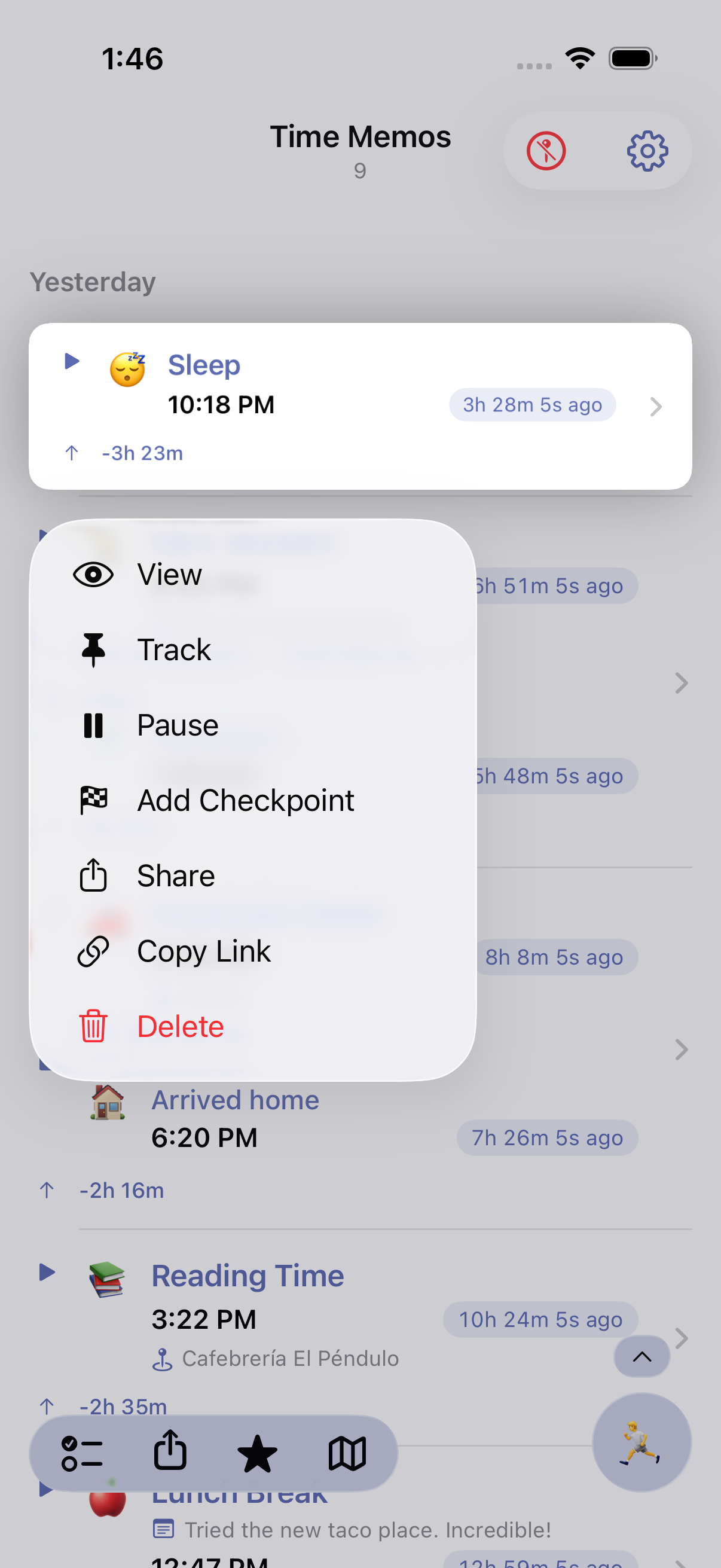
Method 2: Swipe from List
Swipe left on any memo in your list and tap the pin icon to instantly start tracking it as a Live Activity.
Method 3: From Memo Details
Open the memo
Tap on any memo in your list to open its details.
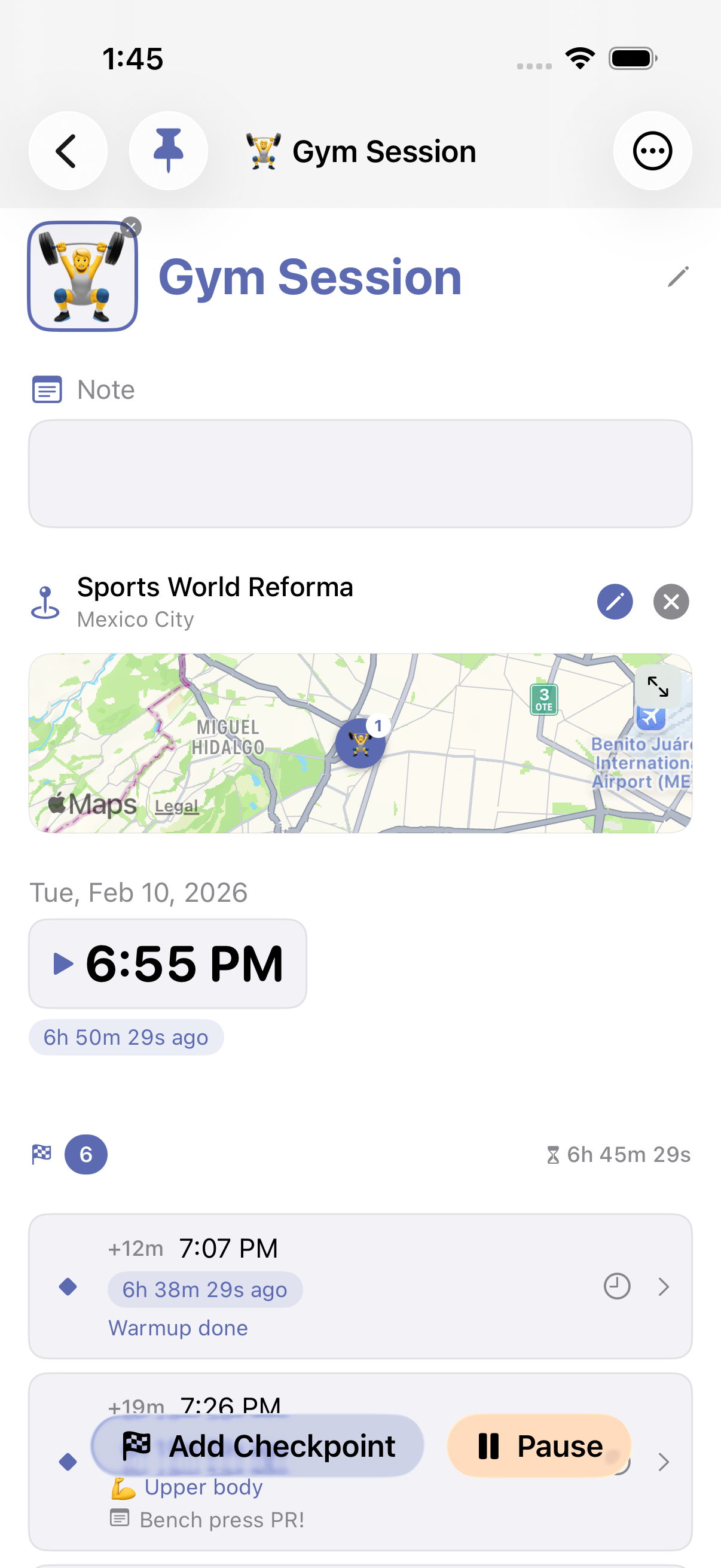
Tap the pin icon
Tap the pin icon to start tracking this memo as a Live Activity.
Method 4: Via Shortcuts
Use the "Capture Time Memo" action in the Shortcuts app with the "Track as Live Activity" option enabled.
Pausing and Resuming
The Live Activity includes buttons to pause and resume tracking directly from your Lock Screen or Dynamic Island — no need to open the app.
Pause Button
Tap the orange Pause button to freeze the timer. Your paused time is excluded from the active duration.
Resume Button
Ready to continue? Tap the green Resume button to pick up tracking right where you left off.
Checkpoint Button
Tap the checkpoint flag to mark a progress point. This button is hidden while paused — resume first to add checkpoints.
How Pause Works
When you pause a memo, the following happens:
- The live timer freezes and the label changes to "Paused:" in orange
- A pause marker is added to your checkpoint timeline
- All time spent paused is excluded from the active duration
- The checkpoint button is hidden — you must resume before adding new checkpoints
- When you resume, a resume marker is added and the timer continues from where it left off
You can pause and resume as many times as you like. Each pause/resume cycle is tracked, and your active duration always reflects only the time you were actively tracking.
Viewing Pause History
Open any memo to see your complete pause/resume history in the checkpoint timeline. Pause and resume checkpoints are visually grouped together since they form a pair — deleting one will delete both.
Each pause/resume pair shows how long you were paused. Tap either the pause or resume row to view or edit that checkpoint's details.
Ways to Pause and Resume
Pause and resume are available from multiple places throughout the app:
- Live Activity: Tap the Pause/Resume button on your Lock Screen or Dynamic Island
- Swipe action: Swipe left on a memo in the list to reveal the Pause or Resume button
- Context menu: Long-press a memo in the list and select Pause or Resume
- Detail sheet: Open a memo to see the Pause or Resume button at the bottom of the screen
Dynamic Island Display
On iPhone 14 Pro and later, Live Activities also appear in the Dynamic Island:
Compact View
Shows the emoji and a condensed timer when other apps are using the Dynamic Island.
Expanded View
Long-press the Dynamic Island to see the full memo label, elapsed time, and action buttons (Untrack, Pause/Resume, Checkpoint).
Minimal View
Shows just the timer when space is limited.
When paused, the Dynamic Island displays the frozen active duration in orange, matching the Lock Screen behavior.
Stopping a Live Activity
Stopping a Live Activity removes it from your Lock Screen and Dynamic Island. Here's how:
- From the app: Tap the pinned memo and tap the pin icon again
- From Dynamic Island: Long-press to expand, then tap the Untrack button
- Automatic: Live Activities stop automatically after 8 hours (iOS limit)
Use Cases
Morning Routine
Start when you wake up to stay aware of time during your morning routine.
Workouts
Track exercise duration and pause between sets or exercises to capture only active time.
Study Sessions
Pause during breaks to see exactly how long you've been actively studying.
Baby Naps
Monitor how long baby has been sleeping at a glance.
Cooking
Track cooking or baking time without setting a separate timer.
Parking
Know how long you've been parked to avoid meter expiration.
Settings
Configure Live Activity behavior in Time Memos settings:
- Long Press Action: Choose whether long-pressing the create button starts a Live Activity or opens the edit sheet
- Primary Swipe Action: Choose which action appears first when swiping left on a memo — Track (Live Activity), Add Checkpoint, or Pause/Resume
Tips
One at a time
You can only have one Time Memos Live Activity running at a time. Starting a new one will replace the previous one.
Pause for breaks
Use pause instead of stopping and restarting. Your active duration will exclude all paused time, giving you an accurate count without manual math.
Combine with automations
Set up automations to automatically start Live Activities when you wake up, arrive at the gym, or connect to CarPlay.
Tap to open
Tap the Live Activity on your Lock Screen or Dynamic Island to jump directly to that memo in the app.
Ready to try it?
Time Memos will be available on the App Store soon.