Saved Views
What is a Saved View?
A Saved View is a stored filter configuration. When you apply a saved view, it instantly filters your memo list to show only the memos that match those criteria. Each view remembers:
- Emoji filter: Show only memos with specific emoji(s)
- Text filter: Show only memos containing specific text
- Location filter: Show all memos, only memos with location, or only memos without location
- Checkpoint filter: Show all memos, only memos with checkpoints, or only memos without checkpoints
- Note filter: Show all memos, only memos with a note, or only memos without a note
- Hide from main list: Optionally hide matching memos from your main list
Creating a Saved View
Apply a filter
Tap the filter button in the toolbar and set up your desired filter criteria.
Tap Save
With a filter active, tap the Save button in the filter popover.
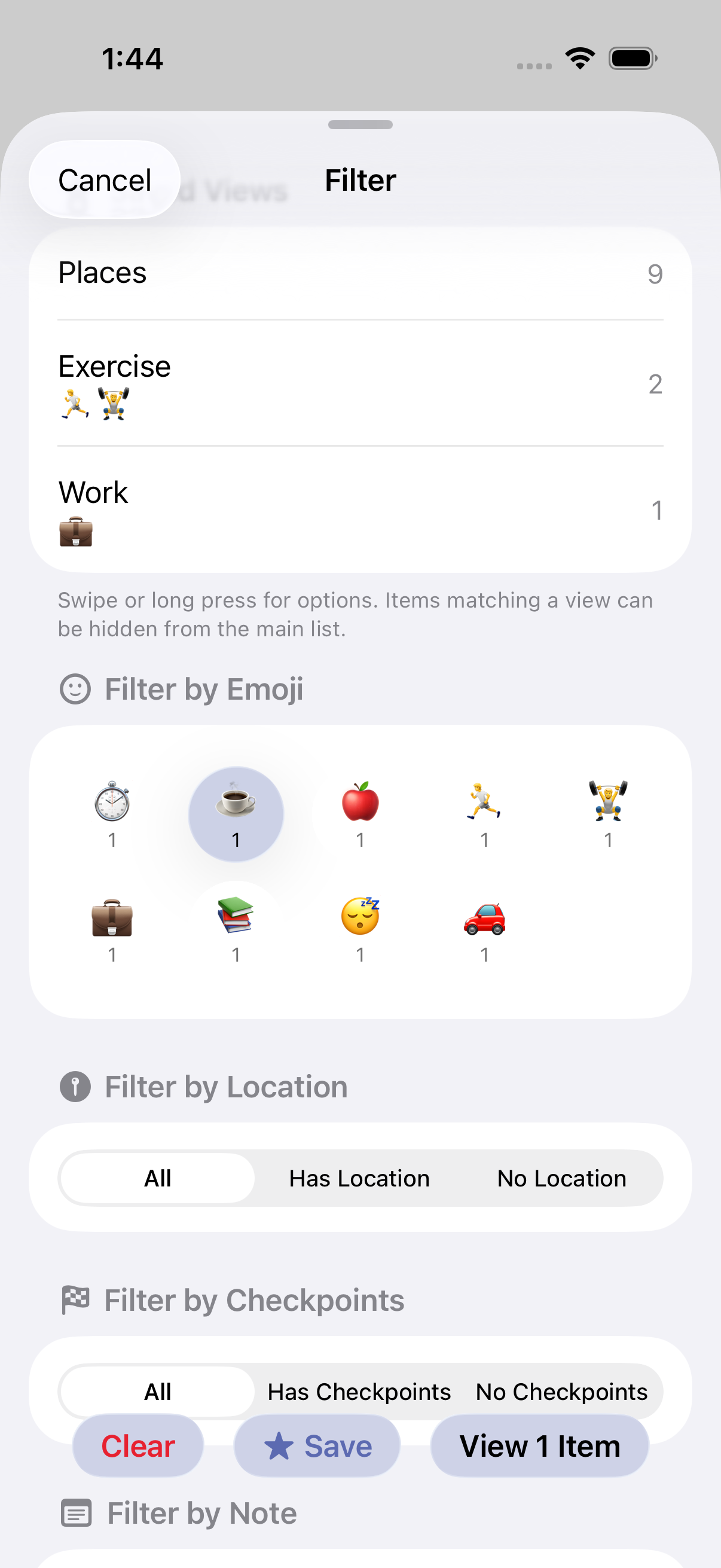
Name your view
Give your view a descriptive name like "Work," "Exercise," or "Coffee Shops."
Applying a Saved View
Open the filter popover to see your saved views listed at the bottom. Tap any saved view to instantly apply its filter configuration.
Hiding Memos from the Main List
You can hide memos that match a saved view from your main list without deleting them. This is useful for keeping your main timeline clean while still being able to access those memos through the saved view.
How to Hide or Show Memos
There are two ways to toggle a view's visibility:
- Swipe left on a saved view to reveal the Hide/Show button
- Long-press a saved view and select "Hide from Main List" or "Show in Main List"
Visual Indicators
When a saved view is set to hide its memos, you'll see an eye with a slash icon next to it in the saved views list. Your main list will also show "Showing X of Y" in the title to indicate that some memos are hidden.
Managing Saved Views
Long-press any saved view in the filter popover to access its context menu, or use swipe gestures for quick actions.
Rename a Saved View
- Swipe right on a saved view to reveal the Rename button
- Long-press and select "Rename" from the context menu
Replace a Saved View's Criteria
- Apply the new filter criteria you want
- Long-press the saved view you want to update
- Select "Replace" from the context menu
This replaces the view's filter settings with your current filter configuration. The Replace option only appears when your active filter differs from the saved view's criteria.
Copy Link to a Saved View
- Swipe right on a saved view to reveal the Copy Link button
- Long-press and select "Copy Link" from the context menu
The link uses the format timememos://view/{uuid}. When opened, Time Memos launches with that saved view's filters applied.
Delete a Saved View
- Long-press the saved view and select "Delete" from the context menu
Siri Integration
Saved views work with Siri for hands-free access. After creating a saved view, you can say:
"Hey Siri, open Work in Time Memos"
Opens Time Memos with your "Work" saved view applied.
"Hey Siri, open Exercise Tracking in Time Memos"
Opens Time Memos filtered to show your exercise memos.
Shortcuts Integration
Saved views integrate with Apple Shortcuts for powerful automation. See the Apple Shortcuts guide for full details.
List Saved Views
Get all your saved views with statistics like memo count, date range, and time span.
Open Saved View
Opens Time Memos with a specific saved view applied.
List Time Memos Using Saved View
Query memos using a saved view's criteria without manually specifying each filter.
Create Saved View
Create a saved view programmatically with optional "Hide from Main List" setting.
Delete Saved Views
Delete one or more saved views.
Add Checkpoint to Most Recent in Saved View
Add a checkpoint to the most recent memo matching a saved view's criteria.
Example Views
Here are some ideas for useful saved views:
Work
Filter by the briefcase emoji to see all work-related timestamps.
Medications
Track when you took your medications with a pill emoji filter.
With Location
Show only memos that have location data attached.
Exercise
Filter by running emoji to review your workout history.
Coffee
See when and where you've been getting your caffeine fix.
Baby
Track feeding times, naps, and other baby-related events.
Tips
Declutter with hidden views
Use "Hide from Main List" to keep routine memos out of your main timeline. Access them through the saved view when needed.
Combine with exports
Apply a saved view before exporting to get exactly the data you need. For example, apply your "Work" view, then export to generate a timesheet.
Use consistent emoji
For saved views to be most useful, use emoji consistently when creating memos. Always use the same emoji for the same type of activity.
Share views across devices
Saved views sync via iCloud, so they're available on all your devices signed into the same Apple ID.
Ready to try it?
Time Memos will be available on the App Store soon.